

The MSC for Me app is one of the most useful tools to set up before an MSC cruise. Before you sail, it can help you link your booking, complete check-in, access cruise documents, review your itinerary and manage certain reservations. Once onboard, it becomes your pocket guide to daily activities, ship maps, reservations, onboard spending, notifications and MSC for Me Chat.
Just as important, you do not need to buy an internet package simply to use MSC for Me onboard. You do need to connect your phone to the ship’s Wi-Fi network, but the app’s onboard features work through that internal connection.
If this is your first MSC cruise, the easiest approach is to download the app before you leave home, connect your booking and make sure the important information is available before embarkation day. This guide covers what MSC for Me can do before and during your cruise, plus where to go if your booking is missing or the app is not working correctly.
MSC for Me App: Quick Answers
| Question | Quick answer |
|---|---|
| Is MSC for Me free? | Yes. The app is free to download and use. |
| Do I need a paid internet package? | No. You can use MSC for Me through the ship’s Wi-Fi without buying internet access. |
| Can I use MSC for Me before my cruise? | Yes. You can use it for booking information, check-in, cruise documents, itinerary details and certain pre-cruise purchases or reservations. |
| Can I link my cruise booking? | Yes. You will generally need your MSC booking number and the passenger name exactly as it appears on the reservation. |
| Can I access my boarding pass? | Yes, when mobile check-in and digital boarding documents are available for your sailing. |
| Can I message other passengers? | Yes. MSC for Me Chat lets eligible guests age 16 and older message other passengers onboard without a paid internet package. |
| Can I check onboard spending? | Yes. MSC for Me can show your onboard expenses and account information. |
| Does MSC for Me work on every MSC ship? | MSC says the MSC for Me ecosystem is available fleetwide, although individual features can vary by ship, sailing and market. |
What Is the MSC for Me App?
MSC for Me is MSC Cruises’ official mobile app and digital onboard companion. It is available for iPhone and Android and is designed to follow you from pre-cruise planning through disembarkation.
Before your cruise, the app can help with tasks such as linking your reservation, checking in, viewing your itinerary, accessing boarding information and reviewing available cruise extras. Onboard, it becomes much more useful because it can show the daily schedule, ship information, reservations, account spending and other sailing-specific information.
You can download MSC for Me from the Apple App Store or Google Play. I recommend downloading it at home instead of waiting until you are at the cruise terminal.
What Works Before Your Cruise vs. Onboard?
MSC for Me changes quite a bit once you board the ship. Some features are useful weeks before your sailing, while others only become available or truly useful after you connect to the ship’s Wi-Fi.
| Before your cruise | Once onboard |
|---|---|
| Link your MSC booking | View the daily activity schedule |
| Complete mobile check-in where available | Build or review your personal agenda |
| Access your digital boarding pass and cruise documents | Use the interactive ship map |
| Review your itinerary and port stops | Check dining, entertainment and activity reservations |
| Review shore excursions | Track onboard spending |
| Check dining, spa and other available add-ons | Receive event reminders and notifications |
| Review drink and internet packages | Use MSC for Me Chat with eligible guests |
| Register or confirm certain payment information where offered | Access MSC Concierge where available |
Not every feature appears at the same time on every sailing. Some reservations may be available before your cruise, while others may only appear onboard. If something you expect to see is missing, do not automatically assume there is a problem.
How to Set Up MSC for Me Before Your Cruise
You do not need to spend an hour configuring the app. The basic setup is straightforward, and doing it before embarkation day can save some frustration at the terminal.
- Download the MSC for Me app.
- Log in or create an MSC account.
- Link your cruise using your MSC booking information.
- Confirm that the correct ship and sailing date appear.
- Complete mobile check-in if it is available for your cruise.
- Enter required travel information and upload a security photo if prompted.
- Save your digital boarding pass and important cruise documents.
- Review your itinerary, reservations and available pre-cruise extras.
- Take screenshots of anything you would not want to lose access to at the terminal.
For the complete walkthrough, see our step-by-step guide to setting up MSC for Me before your cruise.
How to Link Your MSC Booking to the App
After you download MSC for Me, you will want to connect your sailing to the app. In most cases, you will need your MSC booking number along with the passenger name shown on the reservation.
Enter your name exactly as it appears on your cruise confirmation. Cruise reservation systems can be very literal, so a nickname, missing middle name, hyphen or suffix can sometimes create problems.
If you booked through a travel agent, make sure you are using the MSC booking number rather than only the agency’s internal confirmation number. You may have both.
Once the booking is linked, double-check the ship, sailing date, embarkation port and cabin information if a stateroom has already been assigned.
What If My MSC Booking Is Not Showing in the App?
A missing booking is one of the most common MSC for Me problems. Start by checking the simple things before assuming something is wrong with your reservation.
- Confirm you are using the MSC booking number.
- Enter your first and last name exactly as shown on the reservation.
- Check whether the reservation was only recently created.
- Make sure you are signed into the correct MSC account.
- Try signing in through MSC’s website to see whether the booking appears there.
- If you booked through a travel agent, ask them to confirm the MSC booking number.
If your booking still does not appear, do not keep entering different information and hoping for the best. Our MSC for Me troubleshooting guide walks through missing bookings, login issues, connection problems, missing reservations and other common app problems in more detail.
Cruise Documents and Boarding Passes in MSC for Me
MSC for Me can be especially useful during the check-in and embarkation process. Depending on your sailing and market, the app can support mobile check-in and provide access to a digital boarding pass or QR code.
Before leaving for the port, make sure you can access the documents you expect to use for embarkation. I recommend saving or taking screenshots of your digital boarding pass, QR code and any important reservations.
This is not because you should expect the app to fail. It is simply a good backup when you are dealing with terminal cell service, crowded Wi-Fi networks and a phone battery that suddenly decides embarkation day is the perfect time to become dramatic.
If your boarding pass is missing, first confirm that check-in is complete. If it still does not appear, check your MSC account online or your cruise documents and use our MSC for Me app troubleshooting guide for additional steps.
What Can You Use for Free in MSC for Me?
One of the most important things to understand is that using MSC for Me onboard does not require you to purchase an internet package.
Your phone does need to connect to the ship’s Wi-Fi network. That connection lets the app communicate with MSC’s onboard systems. It is different from paying for internet access that lets you browse websites, check email, use social media or stream content.
Through MSC for Me, you can generally use onboard features such as:
- Daily schedules and activity information
- Ship maps
- Your personal agenda
- Reservation information
- Onboard spending and account information
- Notifications and reminders
- MSC for Me Chat for eligible guests
- Other ship-specific app features
If the difference between ship Wi-Fi and paid internet sounds confusing, see our guide to using MSC for Me without buying an internet package.
Using MSC for Me Once You Are Onboard
MSC for Me becomes much more useful after embarkation. Once you board, connect your phone to the ship’s Wi-Fi network and open the app. You do not have to purchase internet access simply to make that connection.
Embarkation day is a good time to spend a few minutes getting familiar with the app. Check your dining information, reservations, daily schedule and onboard account so you know where everything is before you actually need it.
Daily Planner, Activities and Entertainment
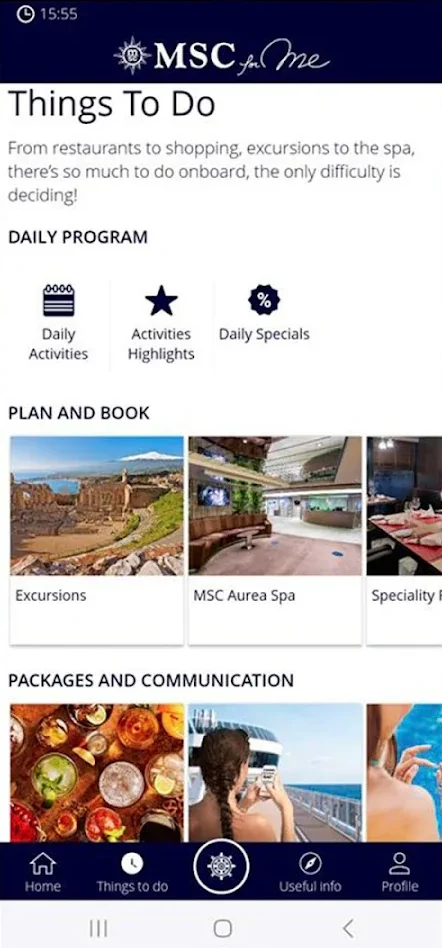
The daily schedule is one of the features I use the most on a cruise line app. MSC ships can have trivia, live music, parties, sports, kids’ programming, shopping events, theater shows and other activities all happening during the same day.
MSC for Me lets you review activities and build a personal agenda around the things you want to do. Notifications can also help remind you when something you saved is getting close.
The app is useful for planning, but do not feel like you need to turn vacation into a project plan. Pick the things you really want to do and leave some room for wandering into something unexpected.
Dining, Shows and Other Reservations
Depending on your ship and sailing, MSC for Me can help you review or make reservations for specialty dining, entertainment, spa treatments, shore excursions and other activities.
Availability can vary, so do not assume that every restaurant, show or activity will behave exactly the same way in the app. Some options may appear before the cruise, some may populate once you board and others may need to be handled directly with the venue.
If an important paid reservation does not appear, check your confirmation before booking it again. A missing app entry does not necessarily mean the reservation was canceled.
Interactive Ship Map
MSC for Me includes ship navigation tools that can be especially useful on larger ships. Restaurants, bars, pools, theaters, kids’ spaces and activity areas can be spread across many decks, and it is very easy to confidently walk several minutes in the wrong direction.
Checking the app before leaving can save some unnecessary laps around the ship. You will probably still get turned around at least once. Consider that part of the cruise experience.
Checking Your Onboard Spending
MSC for Me is also a convenient way to keep an eye on your onboard account. Checking your spending every day or two makes it easier to catch a charge you do not recognize while you are still onboard and can ask Guest Services about it.
This is particularly useful for families, guests booking extras during the cruise and anyone trying to avoid a surprise total on the final morning.
Our guide to checking onboard spending in MSC for Me explains how to find your account, review charges and use the onboard statement.
MSC for Me Chat
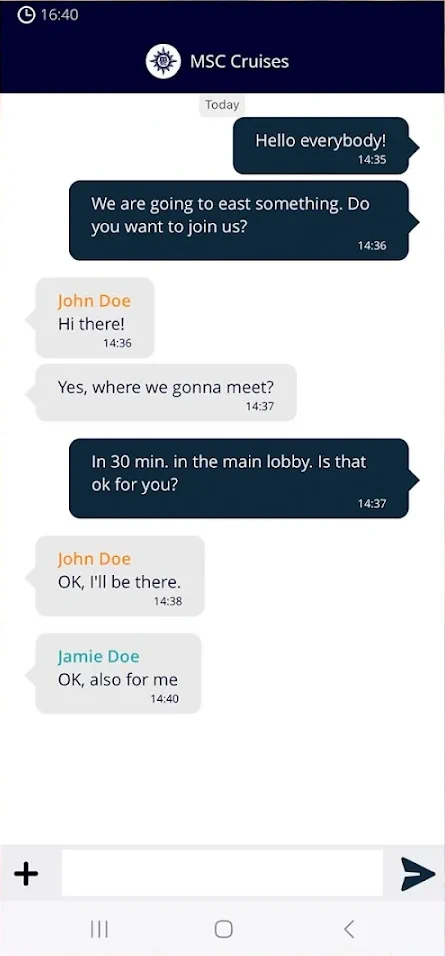
MSC for Me Chat is the app’s onboard messaging feature. It lets eligible passengers on the same sailing send messages to each other while connected to the ship’s Wi-Fi network, without purchasing an internet package.
MSC lists the feature for guests age 16 and older. That age restriction is worth knowing if you are planning how your family will communicate onboard.
Chat can be extremely handy on larger ships, especially when one person is at the pool, someone went back to the cabin and another member of your group disappeared in the general direction of the buffet.
See our complete MSC for Me Chat guide for setup instructions, adding contacts and common chat problems.
Do You Need Wi-Fi or an Internet Package for MSC for Me?
You need Wi-Fi, but you do not need to buy internet just to use MSC for Me.
That distinction trips up a lot of first-time MSC cruisers. Connecting your phone to the ship’s Wi-Fi gives MSC for Me access to the ship’s internal network. A paid internet package is what gives your device broader access to websites, email, social media, regular messaging apps and streaming services.
If your only goal is to use MSC for Me for schedules, maps, reservations, account information and onboard chat, you do not need to buy an internet package for that purpose alone.
For a more detailed explanation, see Do You Need Wi-Fi to Use the MSC for Me App? If you are deciding whether you want broader internet access during your cruise, our MSC Wi-Fi and Internet Guide covers the available packages and what they are intended to do.
MSC for Me Not Working? Start Here
MSC for Me is useful, but cruise ship technology is still cruise ship technology. If the app is not working, the fix is often something fairly simple.
| Problem | What to try first |
|---|---|
| Booking is missing | Verify your MSC booking number and make sure your name matches the reservation exactly. |
| Cannot log in | Confirm your account details and try signing in through MSC’s website. |
| App will not work onboard | Put your phone in airplane mode, turn Wi-Fi back on and connect to the ship’s Wi-Fi network. |
| Boarding pass is missing | Confirm check-in is complete and check your cruise documents or MSC account online. |
| Chat is not working | Make sure everyone is connected to ship Wi-Fi, signed into the correct sailing and eligible to use chat. |
| App keeps disconnecting | Close and reopen the app, reconnect to Wi-Fi, restart your phone and temporarily disable a VPN. |
| A reservation is missing | Check your email or purchase confirmation and verify with the venue or Guest Services before buying it again. |
| Onboard spending looks wrong | Refresh the app and ask Guest Services about any charge you do not recognize. |
If the first fix does not work, see our full MSC for Me App Not Working? Common Problems and Fixes guide.
If the issue involves money, a paid reservation, travel documentation, a shore excursion, your cruise card or anything else important, do not rely only on app troubleshooting. Talk to MSC, your travel agent, the appropriate onboard desk or Guest Services.
Which MSC Ships Have MSC for Me?
MSC says its fleet is equipped with the MSC for Me ecosystem, so the basic app experience is available across MSC Cruises.
However, individual features can differ by ship, sailing and market. A feature you see in a screenshot from one ship may not appear in exactly the same place on another. Some reservations may be available before one sailing but only onboard for another.
Use the app as your guide for your specific cruise rather than assuming every MSC for Me screen will look identical across the fleet.
MSC for Me Wristband
MSC also offers an MSC for Me wristband on certain ships and sailings. The waterproof wristband can provide an alternative to carrying your cruise card for tasks such as cabin access and onboard purchases. MSC Yacht Club guests may have a wristband included.
It is convenient, particularly around pools, but it is not something you need in order to use the MSC for Me app. For most cruisers, the standard cruise card and mobile app cover the important basics.
MSC Concierge in the MSC for Me App
MSC Concierge is an AI-powered assistant integrated into MSC for Me. MSC introduced the feature in 2026 as a complimentary tool designed to answer questions and help guests navigate their cruise experience.
Depending on availability and functionality on your sailing, MSC Concierge can help with questions about dining, activities, entertainment, shore excursions, spa services, account information and other onboard needs.
I would think of it as a convenient first stop for routine questions rather than a replacement for the crew. If something involves a billing dispute, travel documents, an excursion problem, medical concern or another important issue, talk to the appropriate crew member directly.
Best Tips for Using MSC for Me
- Download the app before leaving home.
- Link your booking and confirm the correct sailing appears.
- Complete mobile check-in early when it is available.
- Save screenshots of your boarding pass, QR code and important reservations.
- Make sure other members of your travel party download the app too.
- Connect to the ship’s Wi-Fi as soon as you board.
- Turn on notifications, at least until you know which ones are useful.
- Check your onboard spending every day or two.
- Use the ship map before walking halfway across the ship in the wrong direction.
- Set up MSC for Me Chat before your group separates for the day.
- Do not assume every feature will be identical on every ship or sailing.
- Ask a crew member if anything important in the app looks wrong.
Frequently Asked Questions About the MSC for Me App
Is the MSC for Me app free?
Yes. MSC says the app is free to download and use.
Do I need to buy an internet package to use MSC for Me?
No. MSC says the app works through the ship’s Wi-Fi and does not require a paid internet package for its features.
Do I still need to connect to Wi-Fi?
Yes. Onboard, you connect to the ship’s Wi-Fi network to use the app. That is different from buying a paid internet package.
Can I use MSC for Me before my cruise?
Yes. MSC says guests can use the app before sailing for mobile check-in, itinerary details, ship information, bookings, and digital boarding pass access.
Can I check my onboard spending in the app?
Yes. MSC says guests can view a live-updated expense summary and download the official onboard statement through the app.
Can I message other passengers?
Yes. MSC for Me Chat lets guests message fellow travelers onboard without needing an internet package. MSC says chat is available to guests age 16 and older.
Can kids use MSC for Me Chat?
MSC says the chat feature is available from age 16. Families traveling with younger children should plan another way to stay connected onboard.
What is MSC Concierge?
MSC Concierge is MSC’s newer AI-powered assistant built into the MSC for Me app. MSC says it can answer questions, make recommendations, support service requests, help with bookings, check account balances, and provide assistance in more than 90 languages.
Final Thoughts
The MSC for Me app is not something to ignore. It is one of the easiest ways to keep your cruise organized, especially if you are sailing on a larger MSC ship or cruising with family and friends.
Use it before your cruise to check in, review your plans, and get your boarding information ready. Once onboard, use it to check the schedule, find your way around the ship, track spending, make reservations, and message other guests.
Just remember that the app is there to help your cruise, not run your cruise. If something looks off, ask a crew member. If the app is slow, give it a minute. If you get lost, use the ship map and pretend you were just exploring.
That is a cruise tradition anyway.