
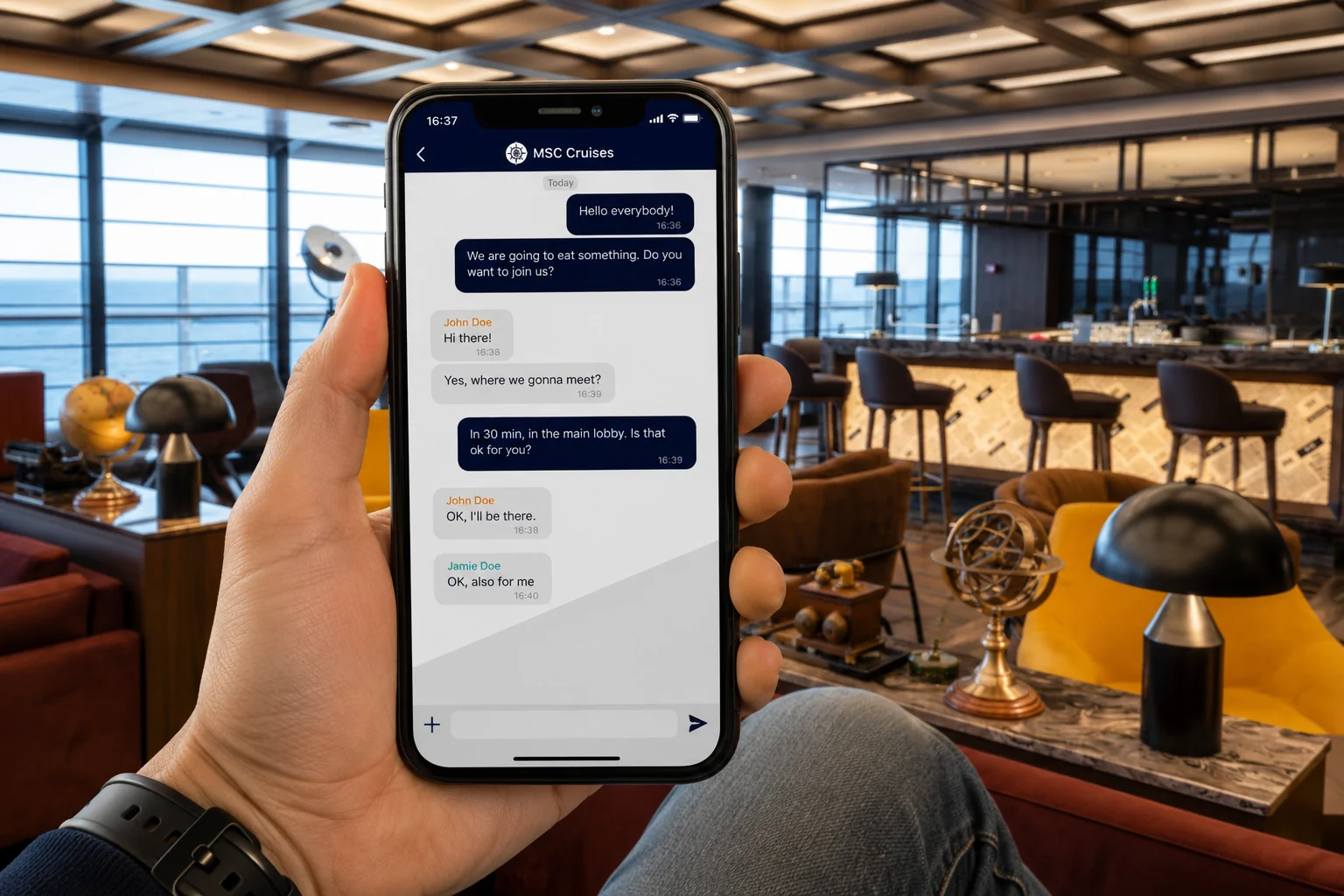
Cruise ships are big. Really big.
One minute your group is together at breakfast, and the next thing you know, one person is at the pool, someone else went back to the cabin, the kids are somewhere near the arcade, and your spouse is “just going to look around for a minute,” which may or may not mean they have vanished into another time zone.
That is where MSC for Me Chat can be a very useful tool.
MSC for Me Chat is the free onboard messaging feature built into the MSC for Me app. It lets you send messages to other passengers on your sailing without needing to buy an internet package. MSC officially says the chat feature allows guests to message fellow travelers onboard without an internet package, and that the feature is available to guests age 16 and older.
It is not quite the same as regular texting, but once you get it set up, it can be one of the easiest ways to keep your group connected during the cruise.
What Is MSC for Me Chat?
MSC for Me Chat is the onboard messaging feature inside the MSC for Me app.
It allows passengers sailing on the same ship to message each other through the app while connected to the ship’s Wi-Fi network. This is especially helpful if you are cruising with family, friends, or multiple cabins and want a simple way to stay in touch during the day.
You can use it for quick messages like:
- “Meet at the buffet at noon.”
- “We found chairs by the pool.”
- “Dinner is in 30 minutes.”
- “I’m heading back to the cabin.”
- “Meet near the theater.”
- “Where did everyone go?”
Basically, it helps solve one of the most common cruise problems: trying to find your people on a floating resort with a dozen bars, multiple pools, several restaurants, and elevators that somehow never arrive when you need them.
Do You Need to Buy Internet to Use MSC for Me Chat?
No. You do not need to buy a paid internet package to use MSC for Me Chat.
This is one of the best parts of the feature. MSC for Me Chat works through the ship’s onboard network, so you can message other passengers without paying for full internet access. MSC’s Google Play app listing also describes MSC for Me Chat as a free chat feature for talking with your onboard mates.
That said, you still need to connect your phone to the ship’s Wi-Fi network.
This is where some cruisers get confused. Connecting to the ship’s Wi-Fi does not automatically mean you are buying internet. The ship’s Wi-Fi network is what allows the MSC for Me app to work onboard. A paid internet package is only needed if you want to browse the web, check email, use social media, stream, video chat, or use messaging apps like WhatsApp. MSC’s internet package page lists those types of online activities as part of the paid Wi-Fi options.
Think of it this way:
Ship Wi-Fi connection: Needed for MSC for Me app features, including chat.
Paid internet package: Needed for websites, email, social media, streaming, and regular messaging apps.
So yes, you connect to Wi-Fi. No, you do not need to buy internet just to use MSC for Me Chat.
Download the MSC for Me App Before Your Cruise
The first step is simple: download the MSC for Me app before you sail.
Do this at home while you still have normal Wi-Fi or cellular service. Trying to download the app in the terminal, or after boarding when everyone is excited, hungry, and trying to figure out where the buffet is, is not the ideal start to vacation.
Before your cruise, each person in your group who plans to use chat should:
- Download the MSC for Me app from the Apple App Store or Google Play Store
- Make sure the app is updated
- Log in or connect the cruise booking if possible
- Enable app notifications
- Keep their cruise information handy for embarkation day
You may not be able to fully use the chat feature until you are onboard and connected to the ship’s Wi-Fi, so do not panic if everything is not active before your cruise.
How to Set Up MSC for Me Chat Onboard
Once you are onboard, setting up MSC for Me Chat is fairly straightforward.
1. Turn On Airplane Mode
After boarding the ship, put your phone in Airplane Mode.
This helps prevent your phone from connecting to maritime cellular service, which can lead to expensive roaming charges. Nobody wants to come home from a cruise with a souvenir phone bill.
After Airplane Mode is on, turn Wi-Fi back on manually.
2. Connect to the Ship’s Wi-Fi
Next, open your phone’s Wi-Fi settings and connect to the ship’s guest Wi-Fi network.
You are not buying an internet package just by connecting to the ship’s Wi-Fi. This simply lets your phone communicate with the ship’s onboard system so the MSC for Me app can work.
Once connected, open the MSC for Me app.
3. Log Into the App
The app may ask you to connect your cruise details. Depending on your ship and app version, you may be able to do this using your booking information, cruise card details, or a scan option.
Follow the prompts in the app.
Once the app recognizes you as an onboard guest, you should be able to access the onboard features, including chat.
4. Open the Chat Feature
Inside the MSC for Me app, look for the Chat icon.
This is typically found near the top of the app screen. Tap the Chat icon to open the messaging area.
5. Add Another Passenger
To message another guest, you need to add them as a contact first.
In the chat area, tap the “+” symbol or add-contact option. From there, you can add another passenger in one of two main ways.
You may be able to search for the person using their name and stateroom number, or you can use the QR code option. The app gives you a personal QR code, and another passenger can scan your code to add you as a contact.
This is a handy option because it avoids the “wait, did you spell my name right?” problem. Cruise apps are useful, but they are not always forgiving when someone’s name, cabin number, or booking details are entered slightly wrong.
6. Accept the Chat Request
The other passenger needs to accept your request before you can start messaging.
Once accepted, their name should appear in your chat list. Tap their name and you can start chatting like a basic text thread.
My recommendation: send a quick test message before your group splits up.
Something simple like “Testing chat” works fine. Or, if you want to start the cruise properly, “Meet me where the drinks are” is also acceptable.
Can You Create Group Chats on MSC for Me?
Yes, MSC for Me Chat supports group chats.
This is especially helpful if you are traveling with multiple cabins, extended family, friends, or a group that tends to scatter around the ship.
A group chat can be useful for:
- Dinner plans
- Show times
- Excursion meetups
- Pool deck coordination
- Trivia or activity reminders
- Keeping a family group together without sending five separate messages
If you are cruising with a larger group, set up the group chat on embarkation day. That way, everyone knows it works before you actually need it.
Who Can Use MSC for Me Chat?
MSC says MSC for Me Chat is available to guests age 16 and older.
This is important for families with younger kids. If someone in your group is under 16, do not assume they will be able to use the chat feature on their own.
For younger kids, you may need a backup plan, such as:
- Scheduled check-in times
- Specific meeting spots
- Cabin phones
- Notes left in the cabin
- Having younger kids stay with an older sibling or adult
- Asking Guest Services if your ship offers any family locator or wristband options
MSC for Me Chat is great, but it does not replace basic family planning, especially with younger children.
Tips for Using MSC for Me Chat Successfully
MSC for Me Chat is useful, but like most cruise technology, it is not perfect. A few simple habits can make it work much better.
Set It Up on Embarkation Day
Do not wait until the first sea day when half your group is already missing.
Set up your contacts and group chats shortly after boarding. That gives everyone time to figure out the app before you need it.
Turn On Notifications
Make sure notifications are allowed for the MSC for Me app.
Check both your phone’s notification settings and any settings inside the app. If notifications are turned off, you may not know someone messaged you.
Open the App Manually Once in a While
Notifications can sometimes lag. This can happen because of phone battery settings, app permissions, or the ship’s local network.
If you are waiting on a message, open the app manually to refresh it.
This is especially helpful around busy times when lots of passengers are using the ship’s network.
Use Specific Meeting Locations
Be specific when telling people where to meet.
“Meet downstairs” is not helpful on a cruise ship.
Try something more specific, like:
- “Meet at the entrance to the buffet.”
- “Meet by the Atrium Bar.”
- “Meet outside the theater.”
- “Meet near the main pool towel station.”
- “Meet at the Sports Bar.”
The more specific you are, the less likely you are to spend 20 minutes circling the ship like you are hunting for buried treasure.
Do Not Rely on It for Emergencies
MSC for Me Chat is helpful for everyday communication, but it should not be your emergency plan.
For urgent issues, contact a crew member, Guest Services, or ship security.
Have a Port Day Backup Plan
MSC for Me Chat is designed for onboard use.
Once you leave the ship in port, do not assume it will help you stay connected. If you are getting off the ship, agree on meeting times, meeting locations, and what to do if someone gets separated.
For port days, regular texting, WhatsApp, or other messaging apps may work if you have cellular service or a paid internet option on shore.
Common Problems With MSC for Me Chat
Like any cruise app, MSC for Me can occasionally be glitchy. Here are some common issues and what to try.
The Chat Feature Is Not Showing
If you do not see the chat feature, make sure you are connected to the ship’s Wi-Fi network.
You may also need to fully log into the app with your cruise details. Some features may not appear until you are onboard and connected properly.
Try closing and reopening the app.
Messages Are Not Sending
If messages are not sending, try toggling your Wi-Fi off and back on.
You can also close the MSC for Me app, reopen it, and make sure you are still connected to the ship’s network.
If that does not work, restart your phone.
Notifications Are Delayed
Notification delays can happen.
Check that notifications are enabled and that your phone is not using battery saver or low-power mode in a way that puts the app to sleep.
If you are waiting for a response, open the app manually.
You Cannot Find Another Passenger
If you cannot find another passenger by searching, try the QR code option instead.
Have one person open their QR code in the app, and the other person scan it from the add-contact screen.
Also make sure the other passenger has opened the app, connected to the ship’s Wi-Fi, and accepted your request.
The App Freezes or Acts Weird
Try the classic technology fix: close it and reopen it.
If that fails, toggle Wi-Fi off and on, reconnect to the ship’s network, or restart your phone.
If you still have issues, ask for help onboard. Depending on the ship, app support may be available at the technology desk, Photo Shop, or Guest Services.
Is MSC for Me Chat Worth Using?
Yes, MSC for Me Chat is absolutely worth setting up.
It is free, it does not require a paid internet package, and it makes it much easier to stay connected with your group onboard.
Is it perfect? No.
Notifications may occasionally lag, setup takes a few minutes, and kids under 16 may need another communication plan. But for most passengers, it is still much better than trying to find your family by wandering from the buffet to the pool to the theater to the cabin and back again.
That is not a vacation. That is cardio with ocean views.
Bottom Line
MSC for Me Chat is one of the most useful features in the MSC for Me app.
It lets you message other passengers onboard without buying an internet package, and it can make a big difference if you are traveling with family, friends, or multiple cabins.
The best approach is to download the app before your cruise, connect to the ship’s Wi-Fi after boarding, add your contacts using search or the QR code option, and send a test message before everyone splits up.
It is not a perfect replacement for regular texting, but it is a free and helpful way to keep your cruise group coordinated.
And on a big MSC ship, anything that helps you avoid saying “Where is everyone?” 14 times a day is worth using.