
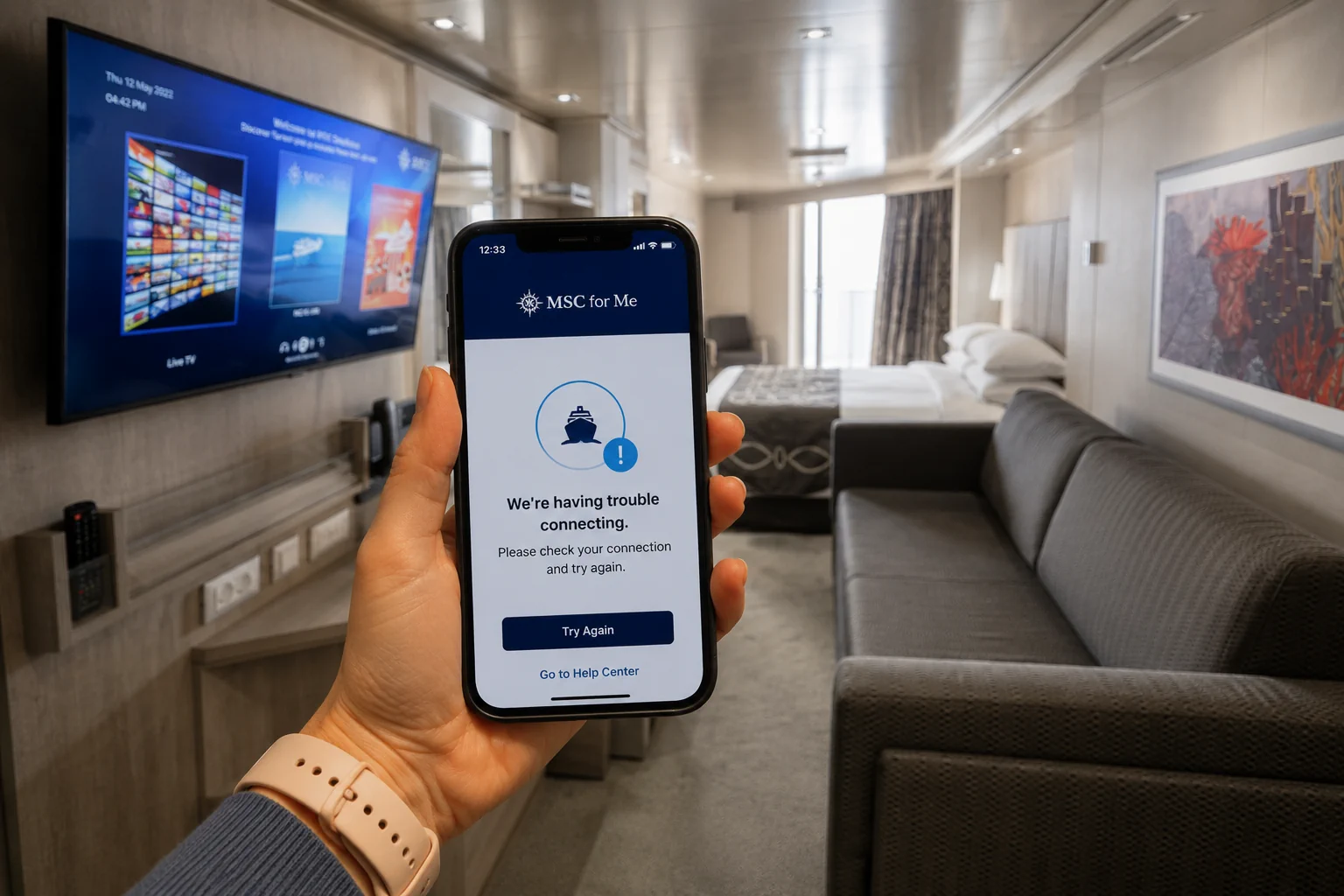
The MSC for Me app is one of the most useful tools you can have on an MSC cruise – until it decides not to work.
Maybe your booking is not showing. Maybe the app will not connect onboard. Maybe MSC for Me Chat is not working. Maybe your boarding pass disappeared into the digital ocean. Or maybe you are standing in the terminal, staring at your phone, wondering why technology always chooses violence right before vacation.
The good news: most MSC for Me app problems are fixable. The issue is usually one of a few things: your booking information is not linked correctly, check-in is incomplete, your phone is not connected to the ship’s Wi-Fi, a VPN is interfering, or the app is having a temporary glitch.
The MSC for Me app supports important cruise features like mobile check-in, digital boarding pass access, the daily schedule, ship details, interactive maps, onboard spending, notifications, and MSC for Me Chat. The app also works through the ship’s Wi-Fi, and no paid internet package is required to use its features.
Here are the most common MSC for Me app problems and what to try before you start questioning every life choice that led you to this moment.
This is part of our broader series on the MSC for Me app.
Before You Panic: The App Is Helpful, But It Is Not the Only Way to Cruise
First, take a breath.
The MSC for Me app is helpful, but it is not the only way to manage your cruise. If the app is slow, glitchy, or temporarily not working, you can still ask crew members, visit Guest Services, check printed schedules, confirm reservations directly with venues, and use your cruise card onboard.
In other words, the app being annoying does not mean your cruise is ruined.
It just means your phone has decided to participate in embarkation day drama.
If the issue involves something important, like your boarding pass, payment method, cruise card, onboard account, a paid reservation, or a shore excursion, do not rely only on troubleshooting. Contact MSC, your travel agent, terminal staff, Guest Services, or the specific onboard desk that handles the issue.
For everything else, start with the simple fixes.
Quick Fixes to Try First
Before digging into a specific problem, try these basic steps:
- Close and reopen the MSC for Me app.
- Make sure the app is updated.
- Restart your phone.
- Confirm you are using the correct booking number and name.
- If onboard, connect to the ship’s Wi-Fi network.
- Put your phone in airplane mode, then turn Wi-Fi back on.
- Turn off cellular data if your phone keeps trying to use it instead of ship Wi-Fi.
- Temporarily turn off your VPN.
- Confirm your phone’s date and time settings are automatic.
- Try logging in through the MSC website if the app is not cooperating.
- Try again later if it is embarkation day and the system seems slow.
- Visit Guest Services if the issue involves your onboard account, cruise card, payment, or a reservation.
Most problems fall into the “annoying but fixable” category. Which is still annoying, obviously, but at least there is a plan.
My Booking Is Not Showing in the MSC for Me App
If your booking is not showing in the MSC for Me app, start with the basics.
Make sure you are using your MSC booking number, not just a travel agency confirmation number. If you booked through a travel agent, you may have both. The app usually needs the MSC booking number.
Also make sure your name matches the reservation exactly.
If your cruise confirmation says “Robert,” do not be shocked if “Bob” gets rejected. Cruise systems tend to be very literal little creatures.
Things to check:
- Booking number
- First name
- Last name
- Middle name or initial
- Hyphenated last name
- Suffixes like Jr. or III
- Date of birth
- Email address
- Whether your booking was recently created
- Whether you are using the correct MSC account
If the booking still does not appear, try logging in through the MSC website instead of the app. If that does not work, contact MSC or your travel agent.
This is especially important if your cruise is coming up soon. Do not wait until embarkation morning to solve a missing booking issue unless you enjoy adding unnecessary suspense to vacation.
I Cannot Complete Check-In
If check-in will not complete, the issue is usually a missing or mismatched required field.
Web check-in is available from booking confirmation up to 2 days before cruise departure. That means this is not something to leave until the very last minute.
Check-in may require:
- Personal information
- Passport or travel document details
- Emergency contact
- Security photo
- Arrival or check-in details
- Payment method setup, if you choose to add one
MSC’s web check-in guidance says credit card registration and the security photo are recommended to speed up embarkation, but they are not mandatory for obtaining the e-ticket and boarding pass. Credit card registration can also be completed onboard at Activation Points, or guests can leave a cash deposit with Guest Services.
If check-in is not working:
- Review every required field.
- Make sure your passport or ID information matches exactly.
- Add an emergency contact.
- Retake the security photo if needed.
- Skip optional credit card setup if the system allows it and that step is causing problems.
- Try completing check-in through MSC’s website instead of the app.
- Contact MSC or your travel agent if you are close to the 2-day cutoff.
If check-in is giving you problems, do not spend three hours yelling at your phone. Try the website, check the required fields, and contact someone if your sailing is getting close.
Yelling at the phone is optional, but rarely productive.
My Boarding Pass Is Not Showing
If your boarding pass is missing, first confirm that check-in is actually complete.
A boarding pass may not appear if required information is missing, documents have not generated yet, or the app is not syncing correctly. If you booked through a travel agent, your documents may also come through that agent.
MSC’s embarkation guidance says guests may need to show either the embarkation form, in paper or digital version, or a personal QR code before boarding. It also says the departure and arrival times shown on the ticket or in MSC for Me are estimated and that guests should follow their check-in slot.
If your boarding pass is not showing:
- Confirm check-in is complete.
- Look for missing required fields.
- Check your email.
- Log in through MSC’s website.
- Contact your travel agent if you booked through one.
- Save or print any documents you do have.
- Arrive at the terminal prepared to resolve it if needed.
This is also why I recommend taking screenshots once your boarding pass appears. I love digital documents. I also love not trusting my entire vacation to one app screen and a phone battery at 18%.
The App Will Not Connect Onboard
This is one of the most common MSC for Me problems.
The app does not require a paid internet package, but it does require a connection to the ship’s Wi-Fi network. That distinction matters. The app works through the ship’s Wi-Fi, and no internet package is required for its features.
If the app will not connect onboard, try this:
- Put your phone in airplane mode.
- Turn Wi-Fi back on.
- Connect to the ship’s Wi-Fi network.
- Open the MSC for Me app after connecting.
- Close and reopen the app if it does not load.
- Restart your phone if needed.
- Turn off any VPN.
- Try forgetting and reconnecting to the ship’s Wi-Fi network.
If that still does not work, there are a few more possibilities.
Your phone may be trying to use cellular data instead of the ship’s Wi-Fi. Your VPN may be blocking the local ship network. Or your phone’s private Wi-Fi address or randomized MAC setting may be interfering with the ship’s login system.
That last one is more of an advanced fix, so do not start there. But if nothing else works, check your phone’s Wi-Fi settings for the ship network and look for a setting related to private Wi-Fi address or randomized MAC address.
Also remember that embarkation day can be busy. Thousands of people may be boarding, connecting devices, checking schedules, and trying to get the app working at the same time. A little slowness is not shocking.
If everyone around you is having the same issue, it may be a ship network or system problem rather than your phone. That is less common, but it can happen.
MSC for Me Chat Is Not Working
MSC for Me Chat is one of the most useful app features, especially for couples, friends, groups, and families with older teens.
The chat feature lets guests message other passengers onboard without needing a paid internet package. MSC lists MSC for Me Chat as available for guests age 16 and older.
If MSC for Me Chat is not working, check these items:
- Is everyone connected to the ship’s Wi-Fi?
- Has everyone opened and logged into MSC for Me?
- Is everyone linked to the correct sailing?
- Is everyone eligible to use the chat feature?
- Has the contact been added correctly?
- Is one person using a VPN?
- Has one phone dropped off the ship’s Wi-Fi network?
Try closing and reopening the app, restarting the phone, and adding the contact again.
MSC for Me Chat can be really helpful, but it is not magic texting. Everyone still needs the app, the ship Wi-Fi connection, and access to the chat feature.
For families with younger kids, the age restriction matters. If your child is under 16, do not assume MSC for Me Chat will solve your onboard communication plan.
The App Says I Need Wi-Fi or Internet
This wording trips people up.
The MSC for Me app needs the ship’s Wi-Fi network. It does not need a paid internet package for core app features.
On a cruise ship, “Wi-Fi” and “internet” are not always the same thing.
The ship’s Wi-Fi network connects your phone to MSC’s onboard systems. That is what lets the app show the schedule, map, reservations, spending, and chat.
A paid internet package connects your phone to the outside internet.
You need paid internet for things like:
- Web browsing
- Facebook Messenger
- TikTok
- YouTube
- Video calls
- Streaming
- Remote work apps
MSC’s internet package terms describe Browse access as including web browsing, email, images, and messenger apps like WhatsApp, with no video. The terms also describe the data limit as unlimited for that package example.
So if the app tells you to connect to Wi-Fi, do not automatically assume you need to buy internet. Connect to the ship’s Wi-Fi first.
What About iMessage?
iMessage gets its own little warning because it can be weird at sea.
Some cruisers report that iMessage may work in certain situations without a paid internet package. But I would not rely on that. It could be inconsistent, it may not work for everyone, and it could change at any time.
Treat iMessage as a “nice if it works” bonus, not your official communication plan.
For onboard messaging with eligible guests, use MSC for Me Chat. For regular external messaging through WhatsApp, Messenger, email, or social apps, expect to need the appropriate internet package.
My Credit Card or Payment Setup Is Not Working
Credit card setup is helpful, but it is not the hill to die on before vacation.
Guests do not have to register a credit card during web check-in. A credit card can be registered onboard at Activation Points, or guests can leave a cash deposit with Guest Services after embarkation.
Onboard purchases are made using the personal cruise card, which means you do not need to carry cash or credit cards around the ship for most onboard spending. MSC’s onboard payment page says guests can activate the cruise card for onboard purchases after embarking at Cruise Card Activation Points.
If payment setup is not working in the app:
- Try again later.
- Confirm your card number, expiration date, security code, and billing details.
- Try a different card.
- Use the onboard activation points if needed. These activation kiosks can be used to confirm the status of assigned cards.
- Visit Guest Services if you are still having trouble onboard.
If you already registered a card during web check-in, you do not need to register your payment method onboard.
So yes, setting it up early can save time. But if it does not work, there are onboard options.
My Reservations Are Missing
If a dining reservation, spa appointment, shore excursion, internet package, drink package, or other booking is missing from the app, do not immediately assume it disappeared.
There may be a syncing delay. The reservation may have been made through the website, a travel agent, or another onboard system. Some items may not show clearly until you are onboard. Or the app may simply be having a moment.
If a reservation is missing:
- Check your email confirmation.
- Check your MSC account online.
- Look for receipts or order confirmations.
- Screenshot confirmations before sailing.
- Ask the venue directly once onboard.
- Visit the Shore Excursions desk, specialty dining desk, spa desk, or Guest Services depending on the issue.
- Do not rebook or repurchase unless you are sure you will not be charged twice.
That last point matters.
If a paid reservation is missing from the app, do not assume it disappeared. Confirm it through another source before buying it again.
Nobody wants to accidentally buy two specialty dinners unless one of them comes with a second stomach.
My Onboard Spending or Invoice Is Not Showing
Onboard spending is one of the most useful MSC for Me features. The app can help you track your expenses, which is much better than discovering a mystery charge on the final morning when the Guest Services line looks like a theme park ride.
If your onboard account or invoice is not showing:
- Make sure you are connected to the ship’s Wi-Fi.
- Close and reopen the app.
- Check again later.
- Confirm your cruise card is activated for onboard purchases.
- Make sure you are viewing the correct guest profile.
- Visit Guest Services if a charge looks wrong.
Charges may not always appear instantly. But if something looks incorrect, do not wait until the final morning to ask about it.
Final morning Guest Services is not where vacation joy goes to thrive.
Notifications Are Not Working
MSC for Me notifications can be helpful for reminders, activities, reservations, and onboard updates. The app includes notifications and reminders as part of its onboard features.
If notifications are not working, check:
- Phone notification permissions
- App notification settings
- Focus mode
- Do Not Disturb
- Battery saver settings
- Wi-Fi connection
- Whether the app has been opened recently
Try opening the app after connecting to the ship’s Wi-Fi. Also make sure your phone is not blocking notifications through a focus mode or battery optimization setting.
That said, do not rely only on notifications for important events.
If you have a shore excursion, dinner reservation, spa appointment, or show time that really matters, check the app manually and screenshot the details.
The App Is Slow or Glitchy on Embarkation Day
Embarkation day is prime time for app weirdness.
Everyone is boarding, connecting to ship Wi-Fi, checking dining times, reviewing schedules, opening maps, trying chat, and looking for reservations. The app and ship network may feel slower than normal.
If the app is sluggish on embarkation day:
- Give it a little time.
- Restart the app.
- Try again after lunch.
- Check again once cabins are ready.
- Use saved screenshots or printed documents for boarding.
- Ask crew if something is urgent.
Embarkation day is when everyone suddenly becomes an app power user. A little slowness is not surprising.
The App Works for One Person But Not Another
This can happen when people in the same cabin have different phone settings, app versions, or login details.
If the app works for one person but not another, compare:
- App version
- Wi-Fi connection
- VPN settings
- Cellular data settings
- Booking linkage
- MSC account login
- Chat eligibility
- Notification permissions
Try updating the app, turning off VPN, logging out and back in, and restarting the phone.
Also make sure both people are connected to the ship’s Wi-Fi network. One phone may quietly switch back to cellular or another network, because phones are sneaky like that.
When to Stop Troubleshooting and Ask for Help
Some app issues are worth troubleshooting. Others are worth handing to a human.
Ask for help if:
- Your boarding pass is missing close to sailing.
- Your booking does not appear and your cruise is soon.
- Your payment setup is not working onboard.
- Your cruise card or onboard account has issues.
- A paid reservation is missing.
- A shore excursion is not showing.
- Your invoice has a charge you do not recognize.
- Chat or app access is important for your family or group and will not work.
- You have accessibility, medical, or travel documentation concerns.
Where to go depends on the problem:
- Before sailing: Contact MSC or your travel agent.
- Embarkation day: Ask terminal staff.
- General onboard app or account issues: Visit Guest Services.
- Wi-Fi or device connection issues: Ask the Internet or Digital Help desk if available.
- Excursion problems: Visit the Shore Excursions desk.
- Specialty dining problems: Ask the restaurant or specialty dining desk.
- Spa issues: Visit the spa desk.
Do not spend half your cruise trying to solve a problem that the right crew member can fix in five minutes.
How to Avoid MSC for Me App Problems Before Your Cruise
A little prep before sailing can prevent a lot of app headaches.
Before your cruise:
- Download MSC for Me at home.
- Update the app before leaving.
- Log in before embarkation day.
- Link your booking.
- Complete check-in before the 2-day cutoff.
- Screenshot your boarding pass.
- Screenshot excursion, dining, spa, drink package, Wi-Fi, and Fun Pass confirmations.
- Save your MSC booking number.
- Keep your passport and travel document details handy.
- Know your MSC account password.
- Tell your travel party to download the app too.
- Turn on notifications.
- Know that you do not need paid internet just to use the app onboard.
The app can also be downloaded onboard through the ship’s Wi-Fi, but downloading and setting it up before you sail is much easier.
Final Thoughts
The MSC for Me app is a very useful cruise tool, but like most cruise line apps, it is not perfect.
If the app is not working, start with the simple things: update the app, restart your phone, confirm your booking details, connect to the ship’s Wi-Fi, and turn off your VPN. If you are onboard, remember that the app uses the ship’s Wi-Fi but does not require a paid internet package for its core features.
Most problems are fixable. Some just need a little patience, especially on embarkation day.
But if the issue involves boarding, money, a paid reservation, your cruise card, or travel documents, stop troubleshooting and ask for help. The app is supposed to make your cruise easier, not become your full-time sea day activity.
Set it up early, screenshot the important stuff, and remember: even if the app has a bad day, you are still on a cruise.
That is a pretty good problem to have.