
Working remotely on a cruise sounds like a flex until you’re 3 minutes into a Teams call and someone’s microphone starts sounding like it’s underwater. The good news is that remote work on MSC can be absolutely doable – especially for email, chat, and focused “heads-down” tasks. The less fun news is that ship internet is still satellite internet, and it behaves like satellite internet.
This guide is our “trusted friend” playbook for getting work done onboard – what to buy, where to sit, when to schedule meetings, how VPNs behave, and what to do when your plan A gets wobbly.
Best first step: If you haven’t yet, read our main guide MSC Wi-Fi and Internet Guide for package basics, full pricing ranges, and device rules.
What’s changing and what hasn’t changed
MSC has gotten clearer about what to expect onboard:
- Internet access is satellite-based, so speed and stability can vary with weather, ship position, and congestion. MSC also notes performance can dip during peak periods like early morning or after shore excursions.
- MSC does not guarantee uninterrupted service.
So yes – you can work from the ship. But we treat it like travel work, not office work. If you have a “career depends on this” meeting, schedule it on a port day whenever possible.
Which MSC Wi-Fi package you need for remote work
This is the simplest rule on the page:
Unless you’re truly only checking email and doing lightweight web tasks, plan on Browse & Stream.
MSC explicitly states that video calls and streaming are possible with Browse & Stream and are not available with the Browse package.
Browse is best for:
- Email and basic web-based tools
- Messaging apps (think WhatsApp-style usage MSC references)
- Light uploads (documents, a few photos)
MSC’s own Browse description focuses on browsing, email/images, and messenger-style chat, and it notes that video and streaming sites are not possible on Browse.
Browse & Stream is best for:
- Zoom and Teams calls
- Streaming music/video (and the overall “higher bandwidth” experience)
- Uploading or posting more media during the trip
MSC describes Browse & Stream as including video chat, streaming music/videos, and posting video/live streaming on social media.
The rules that matter most when you work
Device management: don’t waste your Day 1 activation
MSC’s policy is clear – once a device is connected and activated, it cannot be switched to another device.
Our advice: if you plan to work from a laptop, activate the package on your laptop first. The most common regret we see is activating on a phone, then realizing the laptop is the actual work tool.
You can upgrade onboard if you guessed wrong
MSC allows guests to upgrade from Browse to Browse & Stream (or add devices) by paying only the difference between packages. Downgrades are not allowed once activated.
That’s a great safety net – especially if you start optimistic and then realize you need real video calls.
What to expect on Zoom and Teams
Browse & Stream is the correct package for video calls, but call quality still depends on congestion. MSC notes performance may fluctuate during peak periods like early morning or after shore excursions.
Timing your meetings
Avoid the post-port rush. Our rule of thumb is to steer clear of the 4:00 PM to 6:00 PM window on port days when thousands of passengers get back onboard and upload photos at the same time. That lines up with MSC’s own note that performance can dip after shore excursions.
When possible:
- Put your “must-not-fail” calls on port days using land connectivity
- Schedule sea day calls outside peak windows
- Build a fallback plan: “If video gets choppy, we’ll drop to audio-only”
A simple call playbook that works
- Start with video on, but be ready to switch to audio-only fast
- Close background sync (Drive/OneDrive), cloud photo backup, and auto-updates
- Keep one backup communication method ready (Slack message, text, or email) so you can quickly explain if you drop
MSC also notes that large downloads, automatic updates, and background data usage may be limited under their Fair Use approach.
VPN: the honest answer
VPN is where remote work plans often get shaky.
MSC explicitly warns that certain applications, particularly VPNs, may not function properly due to satellite configuration and proxy settings, and they cannot guarantee third-party app performance.
How we handle this:
- Test your VPN early on Day 1
- If it works, great – still plan for occasional slowdowns
- If it fails, shift VPN-dependent tasks to port days, or use approved browser-based tools (if your employer allows)
Places onboard to work from
Where you work onboard matters almost as much as the package.
We like spots that check three boxes:
- quieter during the day
- decent natural light
- a reasonable chance of power outlets nearby
Here are a few favorites to look for:
- Sky Lounge (Meraviglia and Seaside Class) – Typically quiet during the day, plenty of natural light, and often a good number of outlets. Great for focused laptop blocks and calmer calls.
- Coffee Emporium (World Class) – If you like coffee shop vibes, this is usually a strong pick. It tends to have a “work-friendly” feel, and you can usually find a corner for a longer session.
- Library / Billiard Room – Often the quietest hidden gem on many ships. If you need a high-stakes call and you want fewer surprises, this is one of the best “hunt for it on Day 1” options.
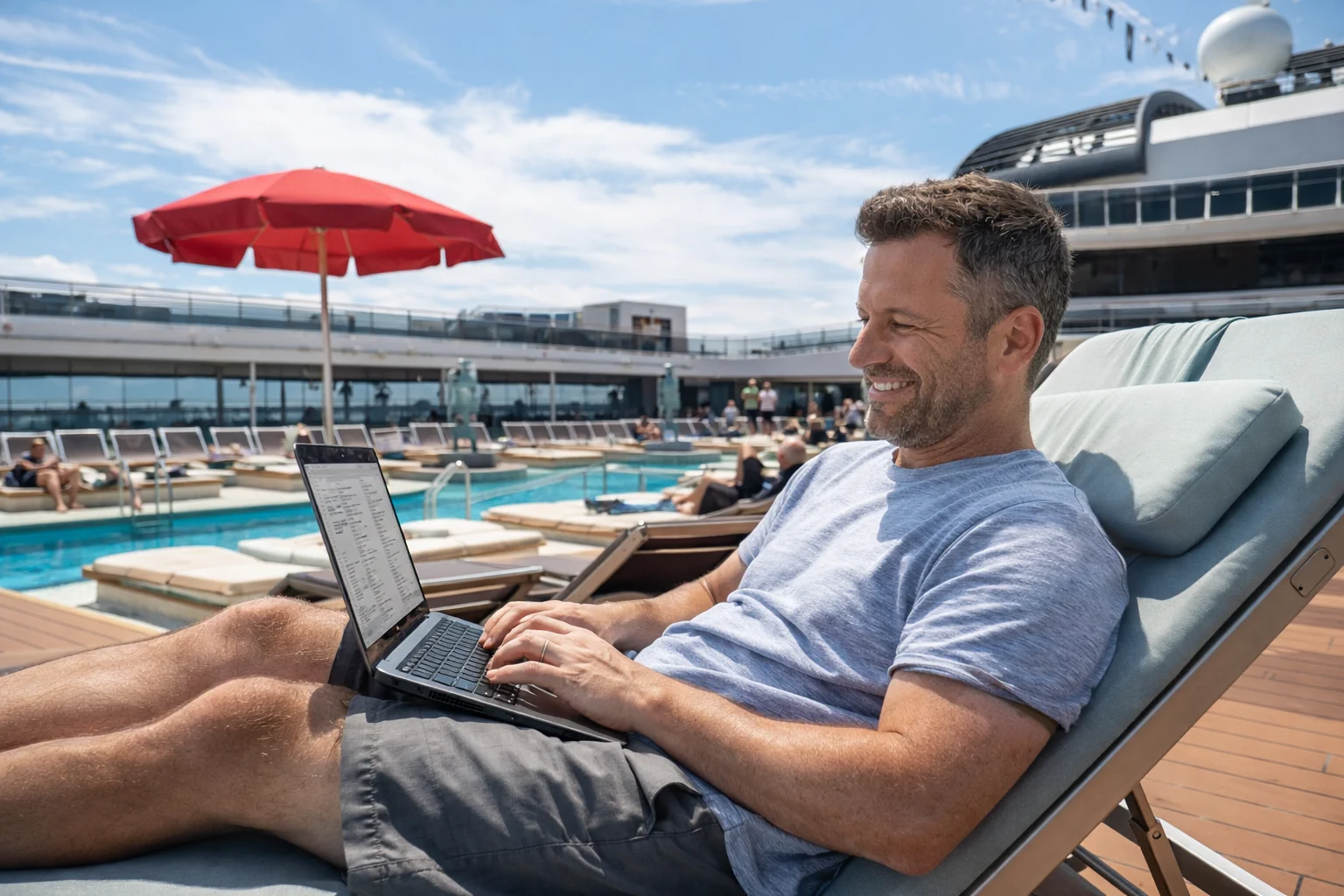
- Top Deck Pool Lounger – If you are looking to flex, get a good view of the pool or destination to make your coworkers drool.
- Your stateroom desk – Every cabin has a small desk setup that can absolutely work for a work block, especially early morning or later evening. It’s also the easiest place to control noise.
Trusted friend tip: Before you commit to a “perfect lounge,” check the daily schedule. Some spaces turn into trivia central or live music zones at very predictable times.
Power prep: don’t lose a work block to a dead battery
A lot of public lounges have limited outlets, and the best seats get taken early.
We recommend:
- A cruise-friendly non-surge-protected power strip, or
- A high-capacity power bank that can get your laptop through a long session
This one small item turns “no outlets available” from a crisis into a shrug.
Packing list for the digital nomad
Keep it simple and practical:
- Laptop + charger
- Backup charging cable
- Headphones with a mic (or a small USB headset)
- Cruise-friendly power strip (non-surge) or high-capacity power bank
- Authenticator app set up before sailing (avoid SMS-only MFA surprises)
- Offline copies of critical files (deck, agenda, docs)
- Optional: portable mouse and a small laptop stand (nice if you’re working multiple days)
Tethering and travel routers: techies only, unsupported
We’ll say this carefully because this is where people can waste time.
- We have personal experience tethering without any problems on a sailing.
- We’ve also seen plenty of reports from other cruisers that hotspot sharing or travel routers were inconsistent, difficult, or possibly blocked on some sailings.
- MSC’s device management rules are strict (no switching devices after activation), and the service is designed around personal, non-transferable use.
Our recommendation: treat tethering/travel routers as an experiment for technical users who are comfortable troubleshooting and taking a risk. Your backup plan should always be “buy the right device count.”
Looking ahead: our best “work from ship” plan
If we were trying to be productive on an MSC sailing, here’s the plan:
- Buy Browse & Stream for any Zoom/Teams needs (Browse is best for email-only work).
- Activate on the laptop, not the phone, and consider 2 devices if you truly need phone + laptop.
- Schedule important calls away from peak windows, especially after port returns.
- Pick a quiet work spot on Day 1 and test your setup early.
- Have a backup plan for one critical meeting (port Wi-Fi or cellular in port).
Related Guides
Add these at the bottom as a “Next reads” block: