
Connecting to MSC Wi-Fi is usually quick – until it isn’t. Most problems fall into a few predictable buckets: your phone reconnects to an old ship network from a past cruise, the login portal never pops up, or “Private Wi-Fi Address” (Private MAC) and DHCP settings cause the ship to treat you like a brand new device every time you reconnect.
This guide walks through two official activation methods (mscwifi.com and the MSC for Me app), then gives you a simple troubleshooting playbook that fixes the most common issues without turning you into the ship’s unofficial IT department. MSC’s own onboard services terms confirm you can activate via www.mscwifi.com or directly through MSC for Me, using your cabin number and birth month/year.
Resource: Need more info on the MSC Wifi? Check out our MSC Wi-Fi and Internet Guide – for packages, pricing, and what actually works
Before you start (two minutes that saves a lot of frustration)
You need to be onboard
This sounds obvious, but it trips people up: you generally need to be connected to the ship’s Wi-Fi network to access the captive portal and activate a package.
If your phone auto-connects from a previous cruise, “Forget Network”
If you sailed MSC before, your device may try to reconnect to an old saved network profile. That can create weird login loops.
- Go to your Wi-Fi list
- Tap the MSC network you see saved (often something like MSC-HOTSPOT or “MSC [SHIPNAME] HOTSPOT”)
- Choose Forget This Network
- Then reconnect fresh
Turn on Airplane Mode, then turn Wi-Fi back on
This reduces the odds your phone keeps hunting for cellular signals (especially in port) while you’re trying to authenticate to the ship network. MSC’s “quick start” style guidance also starts with Airplane Mode + Wi-Fi. If you don’t turn airplane mode on and your phone can connect to a mobile network, it will get confused trying to work between the two networks.
Have your login details ready
MSC’s terms state login uses:
- Cabin number
- Month/year of birth
Decide which device you’re activating first
MSC’s rules are strict about device activation. Once a device is connected and activated, it cannot be switched to another device.
Step-by-step: Method 1 (browser portal at mscwifi.com)
This is the classic approach and the one we recommend if you like predictable steps.
- Connect to the ship’s Wi-Fi network
Look for a network name like MSC-HOTSPOT or MSC [SHIPNAME] HOTSPOT (the exact label varies by ship). - Open your browser and type the address directly
Type: mscwifi.com (do not wait for a pop-up). MSC’s official terms specifically point to www.mscwifi.com for activation. - Log in
Use your cabin number and birth month/year. - Activate your package
If you prepaid, you’ll typically see your package available to start. Tap the activation button (often shown as “Start”). MSC’s quick-start steps also reference tapping START to activate. - If you haven’t purchased yet, you can buy onboard
MSC’s terms describe purchasing or activating packages through the portal.
Need to know what package to buy? Check out our guide: MSC Wi-Fi Packages Explained: Browse vs Browse & Stream)
Step-by-step: Method 2 (activate via the MSC for Me app)
If you already live inside the MSC for Me app, this can be the smoother route.
- Connect to the ship Wi-Fi first
You still need the ship network to use the onboard Wi-Fi functions. - Open MSC for Me and follow the internet prompts
MSC’s terms explicitly state internet packages can be purchased or activated directly through the MSC for Me App.
If the portal won’t load (the “connected but nothing works” fix list)
This is the most common problem: your device says it’s connected to Wi-Fi, but you never get the login page.
Try this in order:
- Type the portal address manually: mscwifi.com
- Toggle Wi-Fi off and back on
- Forget the network and reconnect
- Try a different browser (Safari vs Chrome vs Edge)
- Restart the device (annoying but sometimes effective)
Techie Tip: Force the captive portal to appear
Sometimes your browser is trying too hard to be “secure,” and the portal never triggers. Loading a simple site can force the redirect:
- Type 1.1.1.1 in your browser
- Or visit neverssl.com
NeverSSL is designed specifically to help trigger captive portals.
Private MAC / MAC Randomization (this one breaks device consistency)
The problem
Modern phones often use a “Private Wi-Fi Address” (Apple) or “Randomized MAC” (Android). On ship networks, that can cause the system to think you’re a new device after reconnecting, which can interfere with consistent device identification and make activation feel flaky.
MSC’s own quick-start guidance calls out disabling privacy/network features like iCloud Private Relay and Randomize MAC/Private DNS as part of setup.
MSC’s terms also mention that some device settings (including Private MAC) can need adjustment for connectivity.
The fix (keep your device identity consistent)
- Go to Wi-Fi settings for the ship network (MSC-HOTSPOT / MSC [SHIPNAME] HOTSPOT)
- Toggle OFF:
- Private Wi-Fi Address (iPhone/iPad)
- Randomized MAC (Android, wording varies)
Then reconnect to the ship Wi-Fi and try mscwifi.com again.
Friendly warning: menus vary by phone model and Android version, so don’t worry if your setting label is slightly different. The goal is always the same – stop your device from changing its identity on that Wi-Fi network.
DHCP, “Limited Connection” and DNS
The problem
If you’re connected to Wi-Fi but the login page will not load, your device may not be getting an IP address correctly (DHCP), or your DNS settings might be preventing the portal from intercepting your traffic.
MSC’s terms specifically mention changing the IP type to DHCP as a fix for some connectivity issues.
The fixes
- Confirm IP settings are Automatic / DHCP
- On phones: look for IP settings on the Wi-Fi network details and set to Automatic
- On laptops: ensure you are not set to a manual IP
- Set DNS to Automatic
If you use custom DNS at home (like 8.8.8.8), switch to Automatic for the ship network so the captive portal can do its job. - Use a force-redirect URL
If mscwifi.com still won’t load, try:
- 1.1.1.1
- neverssl.com
Post-port reconnection glitch (the “we just got back onboard” fix)
A common hiccup happens right after a port day. Your phone may still be clinging to weak land signals, or it reconnects to ship Wi-Fi but doesn’t fully authenticate.
Our quick fix:
- Turn Airplane Mode ON
- Wait 5 to 10 seconds
- Turn Wi-Fi back ON and reconnect
This forces a clean “handshake” back onto the ship network and often clears the post-port weirdness.
VPNs and corporate laptops
If you’re using a VPN, it can block captive portals. Same story with corporate security tools that don’t like ship networks.
What we do:
- Disable VPN until after you’ve logged in and activated
- Then re-enable VPN and test
MSC’s terms warn that VPNs may not function properly and that company-issued devices with security settings can experience issues.
For more on working at sea: Working Remotely on MSC Wi-Fi: Zoom/Teams, VPN, and What to Expect)
When to visit the onboard Digital Experts (and where to find them)
At some point, the smart move is to stop fiddling and let the ship help.
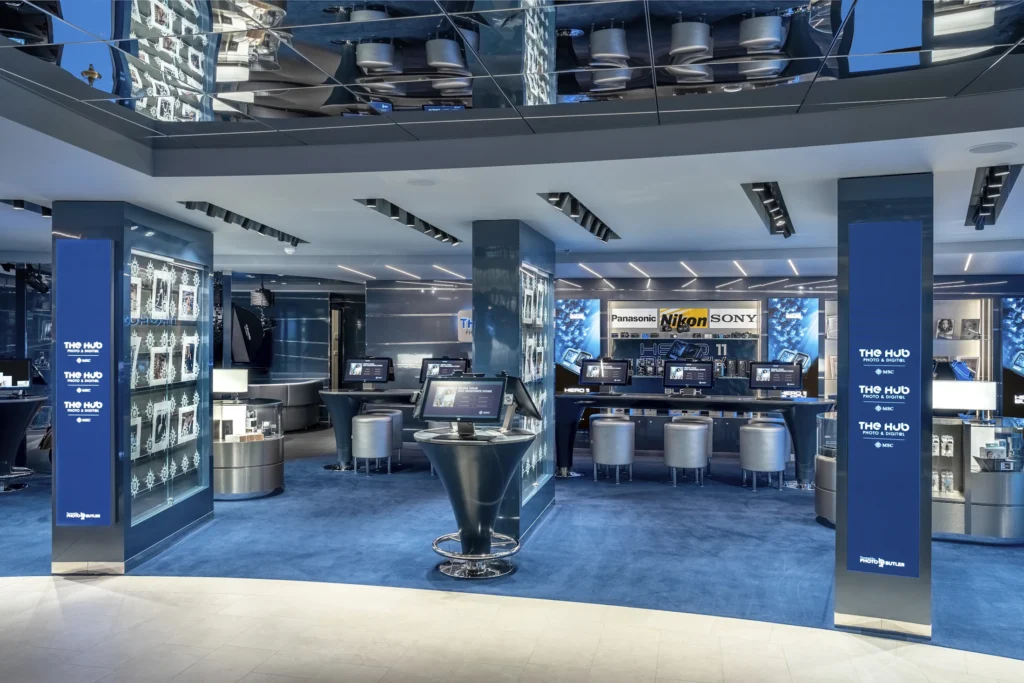
MSC’s U.S. terms say Digital Experts are available at:
- The HUB
- Photo Gallery
- Info Points
Go see a Digital Expert if:
- You accidentally activated the package on the wrong device (they can’t always undo device lock, but they can help you find the cleanest path forward).
- Your multi-device package is only showing as one device
- Your corporate-locked laptop refuses to load the portal or accept required certificates
- You want to upgrade or add devices and you’d rather have it done cleanly
Quick cheat sheet (copy/paste into your Notes app)
- Be onboard and connect to ship Wi-Fi
- If your phone reconnects from an old cruise, Forget Network
- Airplane Mode ON, then Wi-Fi ON
- Go to mscwifi.com or use MSC for Me
- Login: cabin number + birth month/year
- If portal fails: toggle Wi-Fi, forget network, try 1.1.1.1 or neverssl.com
- Fix “Private MAC”: turn off Private Wi-Fi Address / Randomized MAC
- Fix DHCP: set IP to Automatic/DHCP and DNS to Automatic
- Still stuck: visit Digital Experts at The HUB / Photo Gallery / Info Point